
Free Accounting Software in Excel for Easy Bookkeeping Without Cost
Managing finances doesn’t always require expensive tools or complex systems. For many small businesses, freelancers, startups, and nonprofits, free accounting software in Excel remains one of the most practical ways to manage finances, similar to top accounting software comparisons for SMEs.
Excel is familiar, flexible, and powerful enough to track income, expenses, invoices, and basic financial reports without paying a single dollar.
This guide explains how Excel can work as free accounting software, what features you can realistically expect, how to set it up properly, and when it makes sense to stick with Excel versus switching to dedicated accounting tools. If you want simple, no-cost bookkeeping that you fully control, this article will walk you through everything you need to know.
Table of Contents
- Why Excel Is Still Popular for Free Accounting
- Who Should Use Free Accounting Software in Excel
- What Excel Can Do as Free Accounting Software
- How to Set Up Excel for Accounting from Scratch
- Advantages of Using Excel for Free Accounting
- Limitations You Should Be Aware Of
- Excel vs Cloud Accounting Software
- Tips for Using Excel Accounting Effectively
- Security and Data Ownership
- When Excel Is No Longer Enough
- Frequently Asked Questions
Why Excel Is Still Popular for Free Accounting
Despite the rise of cloud platforms and automated accounting tools, Excel continues to be widely used for financial management. The reason is simple: it works. Excel offers structure, customization, and transparency that many users prefer, especially when budgets are tight.
As free accounting software in Excel, it allows you to build exactly what you need without paying monthly fees or learning complicated systems. This is why many people still rely on it as free software for accounts in everyday business operations.
Key reasons people choose Excel for accounting
- No software cost if you already use Excel or free alternatives
- Complete control over data and formulas
- Easy to customize for different accounting needs
- Works offline without internet access
- Simple learning curve for basic bookkeeping
Who Should Use Free Accounting Software in Excel
Excel-based accounting is not meant for every business, but it fits perfectly for certain users. According to Investopedia’s guide on Excel, many small businesses and freelancers rely on Excel for financial tracking and reporting.
Understanding whether it matches your needs is important before committing to it, especially if you are exploring accounting software alternatives to QuickBooks.
.
Ideal users for Excel accounting
- Small businesses with limited transactions
- Freelancers and independent contractors
- Startups in early stages
- Nonprofits with simple income and expense tracking
- Individuals managing personal or side-business finances
If your bookkeeping needs are straightforward, Excel can function as reliable free accounts software in daily operations without unnecessary complexity.
What Excel Can Do as Free Accounting Software
Excel is more powerful than many people realize. When structured correctly, it can handle most basic accounting tasks efficiently.
Income and expense tracking
You can create spreadsheets that record all income sources and expenses by date, category, and payment method. Using formulas, totals update automatically, giving you a clear view of your cash flow.
Invoice management
Excel allows you to design professional-looking invoices with calculations for taxes, discounts, and totals. These invoices can be saved, printed, or sent digitally.
Accounts payable and receivable
By maintaining separate sheets, Excel works as free software for accounting tasks like tracking who owes you money and what bills you need to pay.
Basic financial reports
With the right formulas, Excel can generate:
- Profit and loss statements
- Cash flow summaries
- Monthly and yearly expense breakdowns
How to Set Up Excel for Accounting from Scratch
Setting up Excel as accounting software doesn’t require advanced skills. A clean structure and consistency are more important than complexity.
Step 1: Create essential sheets
- Income sheet
- Expense sheet
- Invoice template
- Summary or dashboard
Step 2: Use clear categories
Categories such as rent, utilities, marketing, supplies, and payroll help you understand where money goes. Consistent categories improve reporting accuracy.
Step 3: Apply basic formulas
Simple formulas like SUM, IF, and VLOOKUP automate calculations and reduce manual errors. These formulas are essential for turning Excel into effective free accounting software in Excel.
Step 4: Protect important cells
Lock formula cells to avoid accidental changes. This adds a layer of reliability to your bookkeeping system.
Advantages of Using Excel for Free Accounting
Excel offers several benefits that make it attractive as free accounting software, especially for beginners and budget-conscious users.
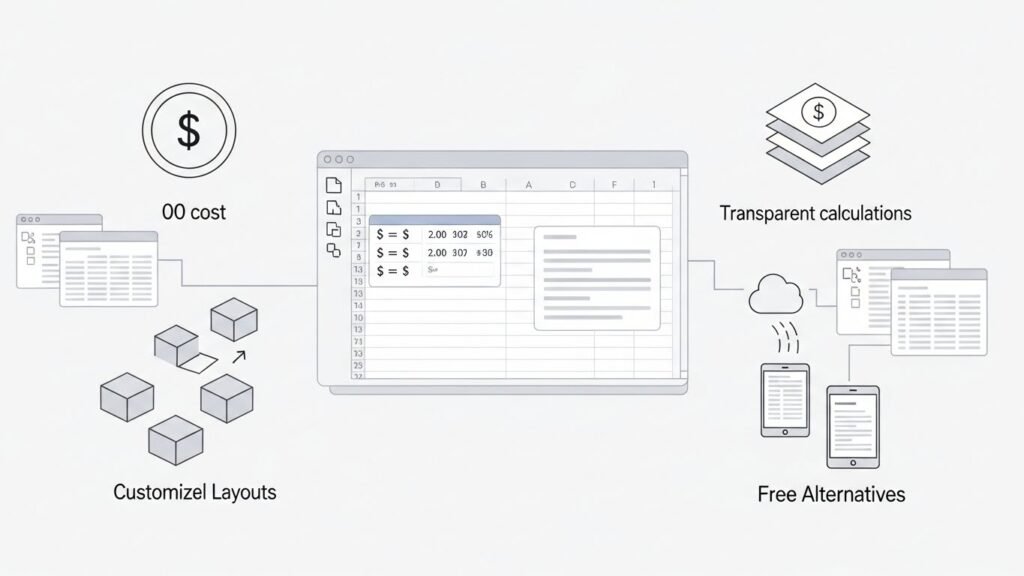
- No recurring subscription fees
- Full transparency of calculations
- Highly customizable layouts
- Easy export and sharing options
- Works with free spreadsheet alternatives
For many users, these advantages outweigh the lack of advanced automation found in paid platforms.
Limitations You Should Be Aware Of
While Excel is powerful, it does have limitations. Being aware of these helps avoid frustration later.
Manual data entry
Unlike cloud accounting tools, Excel requires manual updates. This can become time-consuming as transaction volume grows.
Limited automation
Excel lacks automatic bank syncing and tax calculations unless you build complex systems.
Risk of errors
Incorrect formulas or accidental deletions can cause reporting issues if files are not managed carefully.
Not ideal for scaling businesses
As businesses grow, Excel may struggle to keep up with multi-user access, compliance needs, and advanced reporting.
Excel vs Cloud Accounting Software
Understanding how Excel compares to cloud tools helps you decide when it’s time to move on, especially if you’re evaluating social media management tools for business as part of broader operational tools.
- Cost: Excel is free; cloud tools usually charge monthly fees
- Control: Excel offers full customization
- Automation: Cloud tools automate more tasks
- Ease of use: Excel is familiar to most users
Many people start with free accounting software in Excel and transition later when their needs become more complex.
Tips for Using Excel Accounting Effectively
To get the most from Excel-based accounting, follow these practical tips:
- Update records regularly
- Use consistent naming and formats
- Back up files frequently
- Review formulas periodically
- Keep separate sheets for different years
Good habits turn Excel into dependable free software for accounts rather than a messy spreadsheet.
Security and Data Ownership
One overlooked advantage of Excel accounting is data ownership. Your financial information stays with you, not on third-party servers. When properly backed up, Excel offers solid control and privacy.
Using password protection and offline storage adds another layer of security, especially for sensitive financial records.
When Excel Is No Longer Enough
There comes a point when Excel reaches its limits. If you experience frequent errors, spend too much time updating sheets, or need advanced reporting, it may be time to explore dedicated accounting platforms.
Still, many businesses operate successfully for years using free accounts software in Excel before making that transition.
Frequently Asked Questions
Is Excel really free accounting software?
Excel itself may require a license, but many users already have access or use free spreadsheet alternatives. As a system, it works effectively as free accounting software.
Can Excel handle small business bookkeeping?
Yes, Excel is well-suited for small businesses with low to moderate transaction volume and simple accounting needs.
Is Excel accounting safe?
When properly backed up and protected, Excel offers strong data control and privacy compared to online platforms.
Does Excel support financial reports?
Excel can generate profit and loss statements, expense summaries, and basic financial reports using formulas.
When should I stop using Excel for accounting?
If your business grows significantly, requires automation, or needs multi-user access, transitioning to specialized software may be a better option.